How to subscribe to a feed
Add each client's feed once. Your calendar app keeps it updated — no spreadsheet, no manual re-import.
What is a calendar subscription?
A calendar subscription is a live calendar link (often shown as webcal://…). When you subscribe, Google, Outlook, or Apple pull Ordexly’s dates into a separate calendar. If we correct a deadline, the event updates in place. That is different from downloading a one-time calendar file, which many apps open as a single event in Outlook and never refresh.
Try the sample feed (one click)
Use these buttons so your calendar subscribes instead of downloading a file.
Copied.
Google Calendar (web)
- Prefer the Add to Google Calendar button above, or open Google Calendar on the web.
- Next to Other calendars, click +, then From URL.
- Paste the Ordexly feed link and click Add calendar.
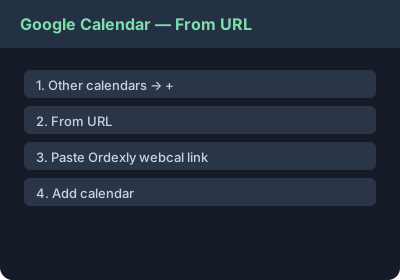
Google may take 12–24 hours to refresh a subscribed feed.
Microsoft Outlook
- Use Add to Apple / Outlook (webcal) when your app supports it, or open Outlook Calendar.
- Choose Add calendar, then Subscribe from web.
- Paste the https feed link, name it (e.g. client name), and save.
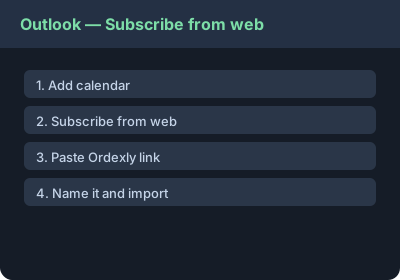
Apple Calendar
- Mac: File → New Calendar Subscription. iPhone: Settings → Calendar → Accounts → Add Account → Other → Add Subscribed Calendar.
- Paste the webcal or https link and subscribe. Set refresh to automatic if asked.
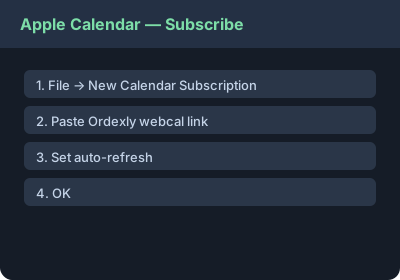
One-click subscribe (sample feed)
Opens in a new tab. Use the same buttons on each business in the dashboard.
Ordexly doesn’t connect to or write into anyone’s calendar account. You (or your client) subscribe to a private feed link, and the calendar app pulls updates from it.